Google Play Console Setup Guide: Add Your onTest Testers in 4 Steps
The visual walkthrough we give every onTest customer: open the closed testing track, add our testers by Google Group or email list, select all countries, and submit the changes for review. Ten minutes, no guesswork.
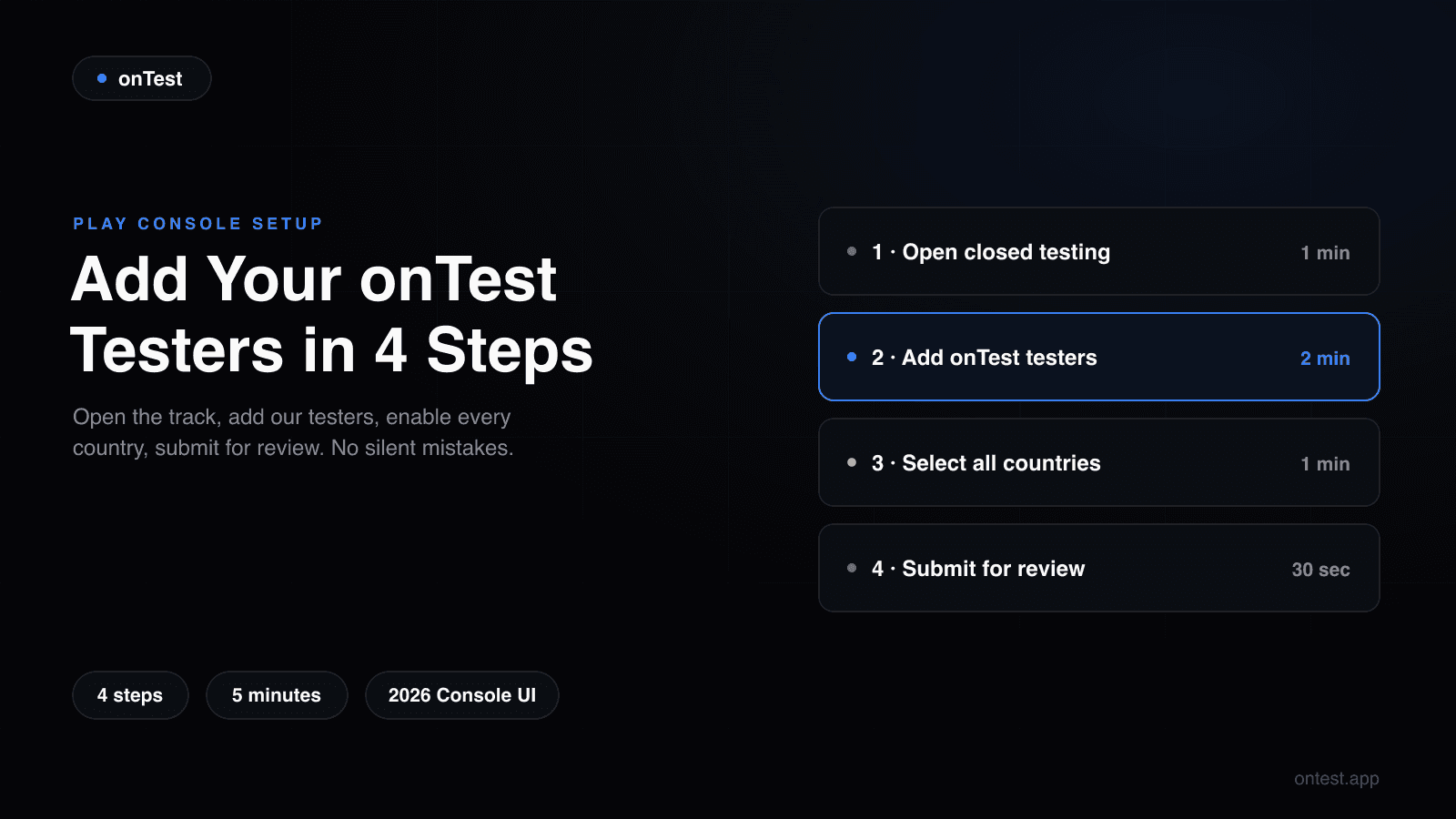
Most orders that stall don't stall because of Google. They stall because of one small Play Console step: a country left unselected, an email list saved but never ticked, an opt-in link shared before the release was approved. None of these show an error on your side, so days pass while the tester count sits at zero.
This is the exact setup guide we show inside the onTest dashboard. Four steps, one action each, with the two tester-adding methods separated so you only see the one you picked. If you want the deeper background on the whole process instead, read the full closed testing setup walkthrough. This page is the fast lane.
Open the closed testing track
In Play Console, select your app and go to Test and release → Testing → Closed testing. Use the default Alpha track and click Manage track.
Can't find it? Google moves this menu around — type "closed testing" into the search bar at the top of Play Console.
Add your onTest testers
On the track's Testers tab there are two ways to add us. Pick the one that suits you — you only need one:
- 1On the Testers tab, select the Google Groups option.
- 2Paste this address into the field:ontest-app@googlegroups.com
- 3Click Save changes. That's it — all 12 testers are covered by this single address, and replacements join automatically without any further edits.
Select countries
Under Countries / regions, click Add countries / regions and select all countries. This doesn't commit you to a global launch — it only makes sure no tester is blocked.
The #1 silent failure: an unselected country shows testers "not available in your country" with no error on your side — and your tester count never moves.
Submit the changes for review
Play Console saves tester and country changes as a draft. Go to Publishing overview and click Submit changes for review.
2 mistakes that stall everything
The opt-in link shows "item not found" until Google approves your changes. Review takes a few hours to 2 days — wait for approval before sharing the link.
An unselected country shows testers "not available in your country" with no error on your side — and the opted-in count silently stays at zero.
Frequently Asked Questions
Should I use the Google Group or individual emails?
The Google Group, unless you have a reason not to. You paste one address once and every onTest tester is covered, including replacements. The individual email list works exactly as well, but if a tester is ever swapped you have to edit the list in Play Console yourself.
When do the testers opt in?
Within hours of you submitting the opt-in link in your onTest dashboard, as long as the release is approved and live on the track. If the count isn't moving after a day, check the two mistakes listed above; one of them is almost always the cause.
My release is approved but the opted-in count is still zero. Why?
Check in this order: countries (all selected on the track?), the tester list or group (added and ticked on the track?), and the link itself (is it the "Join on the web" link for this app?). These three cover nearly every zero-count case we see.
Does this setup commit me to launching in all countries?
No. Closed testing availability is separate from production availability. Selecting all countries for the test only makes sure no tester is blocked; you choose production countries later.
Related guides
- Set Up Google Play Closed Testing Step by Step covers the full process in depth, including the pre-flight checklist.
- Google Play's 12 Testers 14 Days Requirement Explained explains the rule this setup exists to satisfy.
- What Counts as an Active Tester? explains what happens after your testers opt in.
Ready to ship your Android app?
Get 12 real testers for Google Play Closed Testing in 14 days.
Get Started